← Back to Paper Buddy What’s new in Paper Buddy New ways to work and improvements you can use.
Updates at a glance 2026-09-26 Explore what Paper Buddy can help you do. 2026-09-26 Explore Paper Buddy in the actual workspace. 2026-09-25 A workspace with more room for your manuscript 2026-09-06 Inspect the evidence and carry it into your next revision 2026-09-05 Start from your Word draft or a new research question 2026-08-03 Guidance from research direction to the first draft 2026-07 Daily writing progress and easier manuscript browsing 2026-06 A home screen that starts with your latest manuscript 2026-05-25 Bring papers from Chrome into your reference library 2026-05-25 From reviewer comments to replies and manuscript changes 2026-05-10 Bring citations and references along with your Word manuscript 2026-05-01 Health Check reviews the contribution and risks of the whole manuscript 2026-04 Revise through Paper Chat and connect passages from PDFs 2026-03 A coach that turns case notes into draft preparation 2026-02 Article-specific structure and evidence-based drafting 2026-01 The beginnings of Paper Buddy Latest news Explore what Paper Buddy can help you do. Explore Paper Chat, Chrome Connector, Section Critique and Health Check, collaboration, and feedback perspectives through practical examples and actual screens. Start with the landing overview and continue in the feature guide.
Read more Explore Paper Buddy in the actual workspace. See revision, source search, citations, and section critique in short demos, along with the process of starting and closing a research journey.
Read more Major updates over time From the early versions to today: how the manuscript workflow has grown.
A workspace with more room for your manuscript The editor tools and reference list were reorganized, with panels that adapt to the space beside your manuscript.
Search and cite from one reference list; add PDFs by dragging them in or paste a DOI. Drag a reference into the manuscript to cite it and filter cited or unused papers. Move between tools with the activity bar and right-side tabs; open panels as overlays on narrower screens. Explore the related feature Inspect the evidence and carry it into your next revision Source details became clearer, and requests discussed with your companion can continue into manuscript revision.
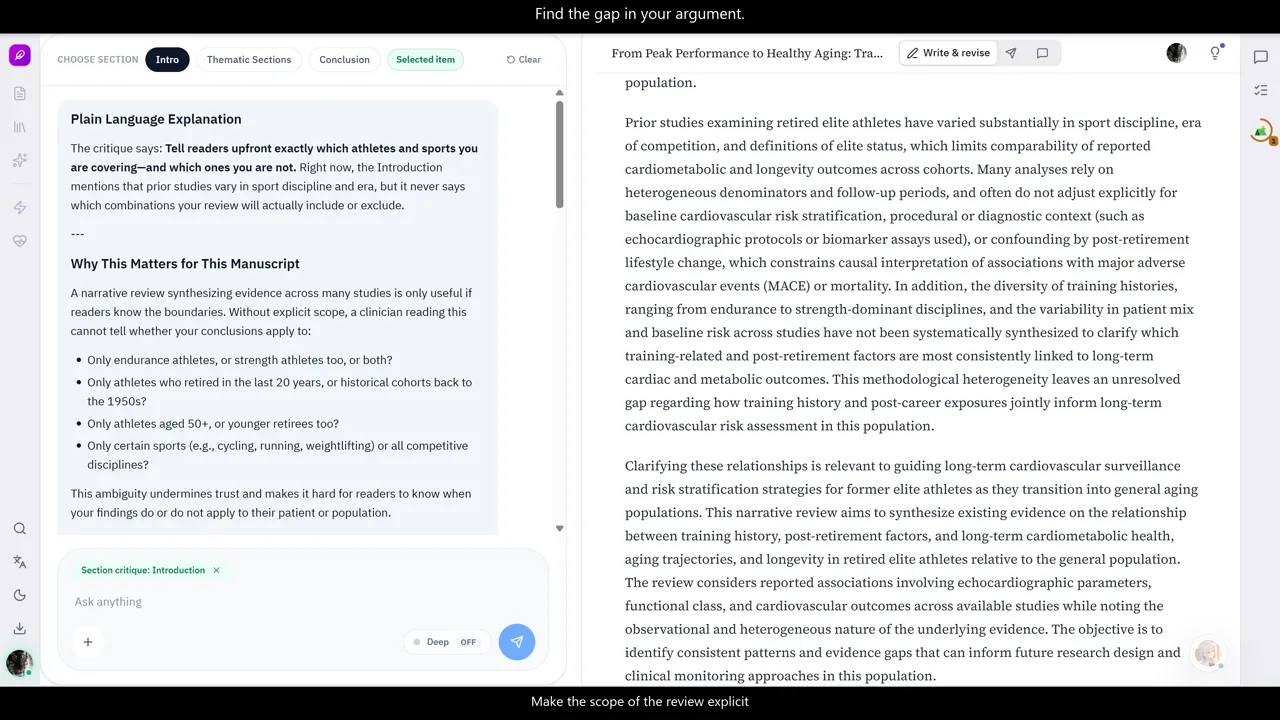
Distinguish abstracts, retrieved full-text passages, and metadata, then compare sources with a manuscript claim. Send a request from the companion to Paper Chat and review the original beside the proposal before applying it. See three priority risks first in Health Check and expand the complete findings when needed. Explore the related feature Start from your Word draft or a new research question Starting with an existing manuscript or a new research topic became simpler.
Choose a Word file first, then confirm its detected title and article type before creating a project. Begin a new manuscript by discussing the research topic and continuing to title selection. Compare original and proposed wording side by side before applying a revision. Explore the related feature Guidance from research direction to the first draft The setup conversation now makes the next step clearer, and the first editor visit explains how to begin drafting.
Continue directly to Title Builder when the research direction is ready. Follow the steps from selecting a manuscript section to reviewing and editing its generated draft card. Return to the drafting guide through a visible start action even after minimizing it. Explore the related feature Daily writing progress and easier manuscript browsing The daily workspace gained writing status, encouragement for different times of day, and easier browsing by manuscript type.
See the date, time, and writing status, with a short message of encouragement for the time of day. Narrow the manuscript list with original-article, case-report, and review filters and distinct cover illustrations. On mobile, companion placement was adjusted around the keyboard and manuscript editing area. Explore the related feature A home screen that starts with your latest manuscript The project home was reorganized around manuscripts, making ongoing work and the next step easier to find.
See recent manuscripts first and resume the one you were working on. Check whether a manuscript is in drafting, reviewer response, final review, or another stage. See counts for all manuscripts, completed work, and Word imports, with new-research and Word-import actions on the same screen. Explore the related feature Bring papers from Chrome into your reference library Paper Buddy Connector connects papers you find in the browser with the references you use in your manuscript.
Capture reference metadata from PubMed and publisher article pages into a project. Attach an accessible PDF or save only the reference when the PDF is unavailable. Import multiple papers from result lists and references in RIS, BibTeX, or NBIB format. Explore the related feature From reviewer comments to replies and manuscript changes Reviewer comments, author decisions, response letters, and manuscript changes were brought into one revision flow.
Import reviewer comments and prepare a response draft with a manuscript change plan. Discuss items requiring author judgment and connect confirmed decisions to the response letter. Export the response letter and revised manuscript as Word files. Explore the related feature Bring citations and references along with your Word manuscript Version 24.7.1 improved Word import so existing manuscripts and their reference information can continue in Paper Buddy.
Read sections and tables from Korean and English manuscripts into the workspace. Use citation metadata from Zotero, Mendeley, EndNote, and Word to help recover references. Leave ambiguous reference matches unlinked for review. Explore the related feature Health Check reviews the contribution and risks of the whole manuscript The review grew beyond individual passages to examine the manuscript’s central contribution and the connection between claims and evidence.
Review the contribution, argument flow, and key risks that affect the conclusion. Bring reporting-guideline and statistical-consistency findings into the manuscript review. Inspect related literature and use Paper Chat to unpack a selected finding. Explore the related feature Revise through Paper Chat and connect passages from PDFs Paper Chat became a simpler conversation beside the manuscript, with PDF reading connected to questions and writing tasks.
Choose a section, ask with manuscript context, and review drafting or revision proposals. Inspect project references and retrieved evidence, then add sources to the library or cite them in the manuscript. Select a PDF passage for a plain-language explanation or ask Paper Chat how it could inform your draft. Explore the related feature A coach that turns case notes into draft preparation A new coaching flow organizes case-report and case-series notes, helps fill gaps through conversation, and passes the result to Smart Draft.
Extract individual cases from unstructured notes and review the information in a table. Distinguish missing fields and critical gaps, then add details through follow-up questions. Send the organized case information to Smart Draft to support manuscript drafting. Explore the related feature Article-specific structure and evidence-based drafting Writing workflows expanded to fit original articles, case reports, and narrative reviews, alongside Smart Draft with retrieved literature evidence.
Use sections suited to the article type, including Case Presentation for case reports. Generate a draft for a selected section in Smart Draft and bring in results or case information as input. Use Evidence Bridge for evidence-grounded additions and Tone Refine to polish selected wording. Explore the related feature The beginnings of Paper Buddy Paper Buddy began with a simple idea: make a manuscript easier to start by writing in small pieces, with feedback along the way.
Write one idea at a time in small cards organized around the IMRaD structure. See the structure on the left, write in the center, and read AI reader reactions on the right. Continue where you left off with autosave and card navigation. Explore the related feature Credits Wonjong Jeong (Crimson Global Academy)
Helped shape the ideas and code behind the AI reader reactions, conversational onboarding, Companion, and Epilogue.
Also shared ideas on the workspace layout, the first-draft flow, co-editing, and the Toolbox.
 Read more